Why Your 1Gbps Internet Still Feels Slow: Router, Upload Speed, and Home Network Bottlenecks
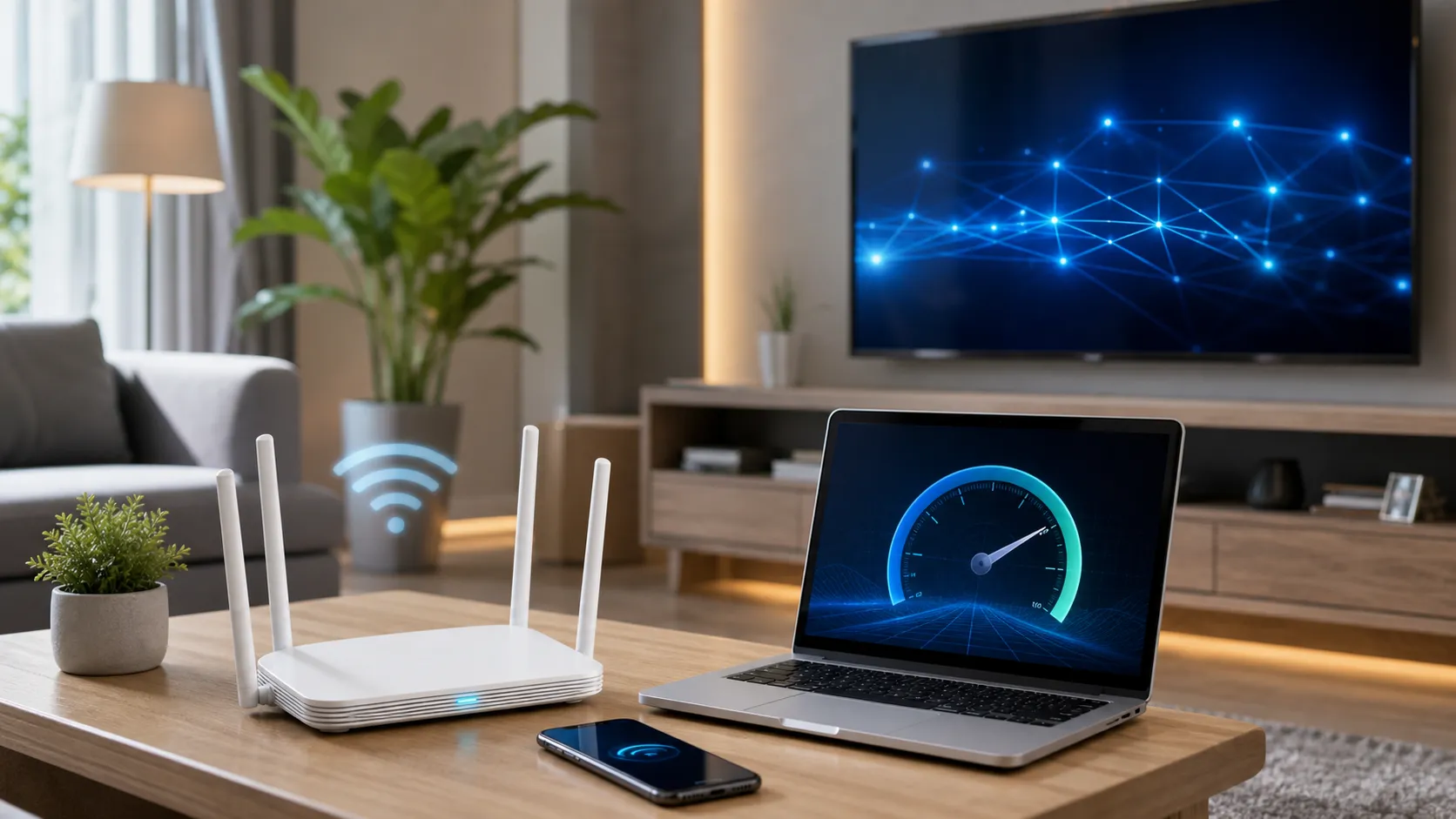
When people upgrade home internet, they often focus on download speed: 500Mbps, 1Gbps, or 2Gbps. But real home network performance depends on more than the number in the plan name. If video calls freeze, cloud backups crawl, smart cameras lag, games drop, or one room has weak signal, the problem may not be your internet provider alone.
The bottleneck may be router quality, Wi-Fi coverage, upload speed, device hardware, or where the router is placed.
OpenVault’s February 2026 broadband usage report for 4Q25 found especially strong growth in upstream usage. Average upstream usage reached 55.86GB at year-end, up 21.7% from 45.9GB in 2024. Average monthly total usage also rose 9.9% to 767.4GB, passing 700GB for the first time. That shift shows that home internet is no longer just about downloading video. Remote work, HD video calls, cloud photos, NAS devices, security cameras, content creation, and file sync all use upload bandwidth. Source: OpenVault: Faster Speeds Help Upstream Usage Hit The Gas
This is why you should not compare internet plans by maximum download speed alone. FCC Broadband Consumer Labels are designed to help consumers compare broadband price, performance, data limits, and fees more clearly. The label can show download speed, upload speed, price, extra fees, and data limits. Source: FCC Broadband Consumer Labels
A good troubleshooting process starts with four steps. First, test wired speed. Connect a computer directly to the router or modem with an Ethernet cable and test whether performance is close to the plan speed. If wired speed is fine but Wi-Fi is slow, the problem is probably wireless coverage or router performance.
Second, check the router. Older routers may advertise high theoretical speeds but still be limited by CPU, antennas, bands, ports, firmware, or device handling. Third, check placement. Do not hide the router inside a metal cabinet, wiring closet, floor corner, or behind thick walls. Fourth, understand 2.4GHz, 5GHz, and 6GHz. The 2.4GHz band travels farther but is slower. The 5GHz band is faster but shorter range. The 6GHz band can be excellent for nearby high-speed devices.
If your home is large, multi-level, or has thick walls, one router may not be enough. A mesh system is often more practical than one “super router.” For fixed devices such as TVs, desktops, NAS units, and game consoles, use Ethernet when possible and save Wi-Fi capacity for phones and tablets.
Practical Checklist
First, test wired speed to check whether the provider line is performing.
Second, read broadband labels for upload speed and data limits.
Third, place the router near the center of the home, elevated, and away from obstructions.
Fourth, consider mesh Wi-Fi for large or multi-level homes.
Fifth, use Ethernet for TVs, game consoles, NAS devices, and desktops when practical.
Sixth, update router firmware regularly.
Seventh, separate smart home devices from main devices if your network is crowded.
This article is for general consumer technology and home networking information only and is not telecom, repair, or engineering advice.
Related Financial Decisions
Keep using the same cash-flow lens on related decisions.
Personal Finance in 2026: What AI Agents Can Help With, and What They Should Not Do
Agentic AI is moving from chat to task assistance. Learn how AI can help with budgeting, expense sorting, credit card comparisons, and bill reminders while avoiding privacy and financial risks.
techDo Not Pick Internet Service by '1Gbps' Alone: How to Read Broadband Labels
Internet plans should be compared by total price, upload speed, data limits, equipment fees, and post-promotion pricing, not just maximum download speed.
techStart Saving Electricity With Lighting: How to Replace LED Bulbs Wisely
Switching to LED bulbs is one of the easiest energy-saving steps for many households. This DOE-based guide explains which bulbs to replace first and how controls can help.
SmartLiving Tools
Keep running the numbers with free practical tools.